Learn about making and playing Jeopardy games from an experienced educator


What Is Factile?
Factile is not just a game but a valuable educational tool. Classroom teachers can use Factile to engage students in review activities or as a refreshing break from routine, enhancing students' learning experience. Factile has six formats: Factile (Jeopardy style), Quiz Bowl (College Quiz Bowl), Flash Cards (for review), Interactive Choice (Jeopardy Style practice), Choice (Jeopardy Style Multiple Choice), and Memory (Tile Matching Memory).
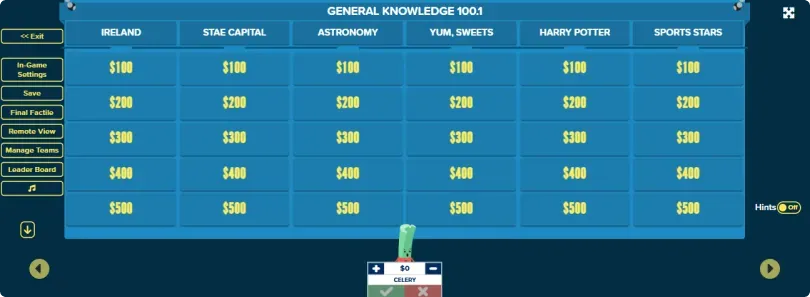
Factile is a quiz game similar to the Jeopardy television game show. In the TV game show, contestants are given clues in the form of answers and respond by phrasing a question that correctly matches the given clue. In the classroom, teachers use Factile to mimic the game show by presenting clues in the form of answers so the student provides the question; or teachers simply present questions and have students provide the answers. Figure 1.1 shows a typical Factile screen in Jeopardy-style mode.
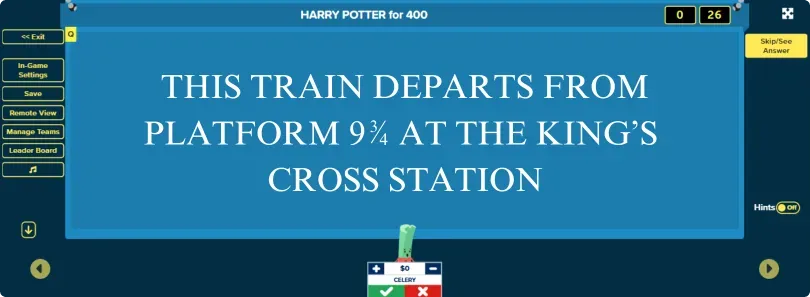
If the player gives a correct response, points are earned. If the response is incorrect, points are deducted, and players from one of the other teams can attempt to respond. Point values increase as the responses become more difficult. The correct response for the clue in Figure 1.2 would be What is the Hogwarts Express? The game continues until all questions have been answered and contestants go head-to-head with the Final Factile question. If time is an issue, the teacher (ie the game moderator) can skip to the final question, or games can be saved and continued later.
How to play Factile (Jeopardy Style)?
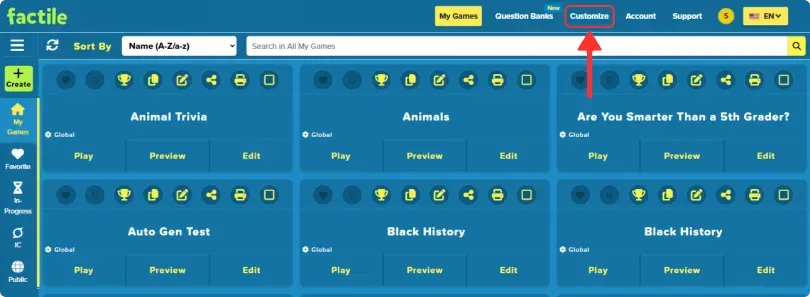
Setting Up As The Moderator You can customize game settings by clicking on the customize tab in the menu at the top of the screen (Figure 1.3) or using the default settings.
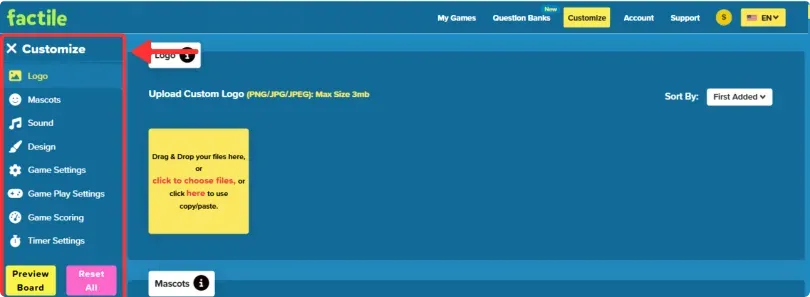
The customize menu options are listed on the left side of your screen (Figure 1.4). From this page, you can make your customized settings global or game-specific. See Customizing Your Game for more details.
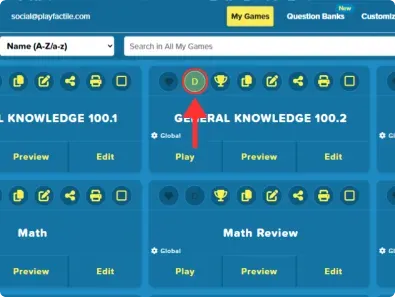
Factile (Jeopardy-style) can be played with one or two rounds. Your game does not have to include a final factile question; however, if it does, that is typically done at the end of the final round. For a double-round game, choose two games (one for each round) and select double factile "D" (Figure 1.5) in the game that will be played in the second round. Typically, in the double factile round, points for each category are doubled.
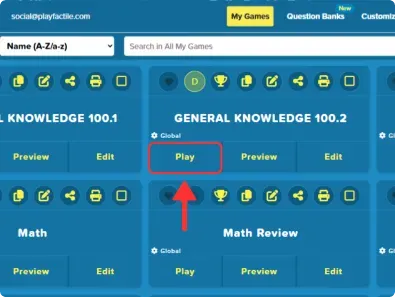
Click on "play." to move to the next option (figure 1.6 above)
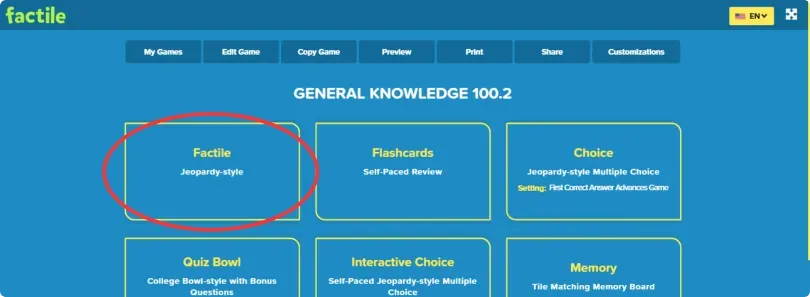
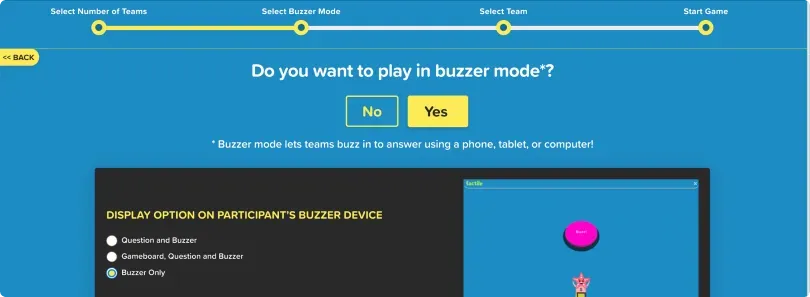
The next screen will allow you to choose the type of game you want to play - select Factile (Jeopardy-style).On the following screen, choose the number of teams. Next, select buzzer mode which allows players to use a device (mobile phone, tablet or computer) to "buzz in" to respond to a clue. From this screen (figure 1.8), you can choose what will appear on each player's device (question & buzzer, gameboard, question & buzzer, or buzzer only)
The "Invite Your Teams" screen (figure 1.9) displays the link for players to join (https://www.playfactile.com/join). From that link, players can enter the four-digit PIN or scan the QR code to go directly to the next step. Each PIN and QR code are unique to the current game. After joining, choosing a mascot, and entering a name, each team will appear on the screen.
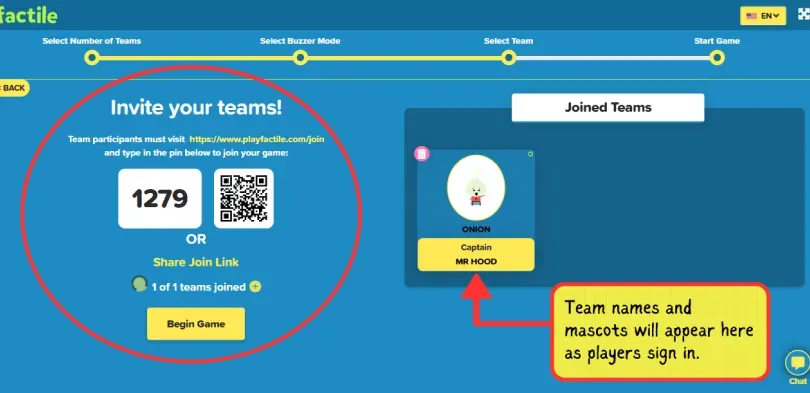
When all teams have logged in, click on "Begin the game." You can read the "How to Play" instructions or skip to start the game. The Factile (Jeopardy game) will appear on the screen. (figure 1.1)
Playing the Game
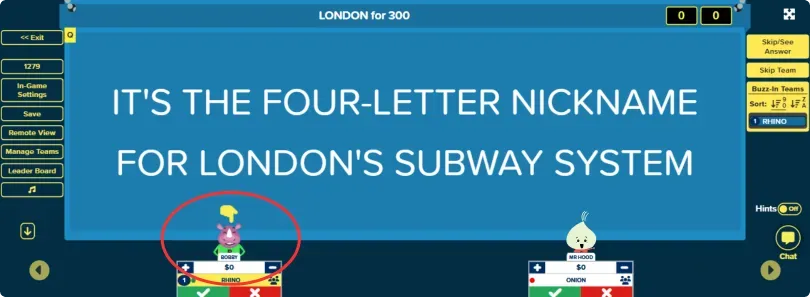
Choose a team to go first. A member of that team can choose from any of the six categories and any of the five point values from the screen (Figure 1.1). The teacher, as the moderator, will click on that choice to reveal the clue. If a player buzzes in, a finger pointing to that team's mascot will appear (figure 1.10). If the team gives the correct response, the moderator will click ✓ | X on the check mark to score.
If the answer is incorrect or time runs out, the moderator will click on the x. The game continues until all clues have been revealed or the moderator chooses to move to the next ✓ | X stage.
As noted above, if there is a double factile round, the points are doubled in that round, with six new categories and 30 new clues. The final factile is a clue given to all teams, and they each have the chance to respond to the same clue. (Note that to play this round, a team must have a positive score.)
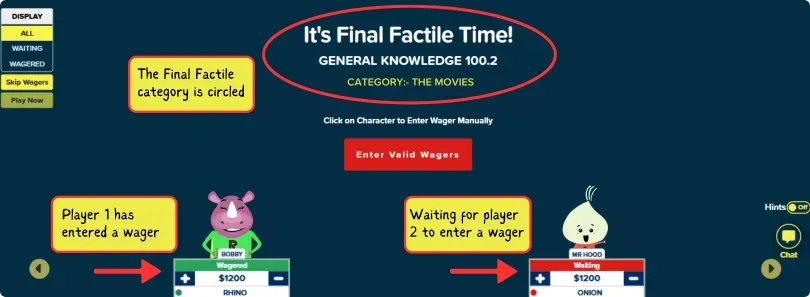
In final factile, the category will be shown, and each team will enter a 'wager' of the number of points they wish to 'bet' on this final clue (figure 1.11). The wager can be any number between zero and the total points earned. As each team enters their wager, the red waiting box will turn green wagered (figure 1.11).
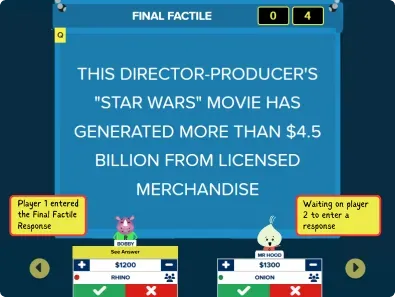
When all teams have entered their wager, the moderator will click on play now, and the final factile clue will appear (figure 1.12). Each team can then enter a response. As they do so, "see answer" with a yellow background will appear on the moderator’s screen below the team mascot (figure 1.12). When all responses are in, the moderator can click on the “see answer” button to reveal the team's response and mark it as correct or incorrect ✓ | X (note when customizing the game, the moderator can choose a time limit to enter the final factile response, and it is up to the moderator to decide if a team's response will be marked incorrect if they do not respond in time. When all final factile responses have been revealed and scored, the winning team will automatically be displayed (figure 1.13).

Multi-Member Teams
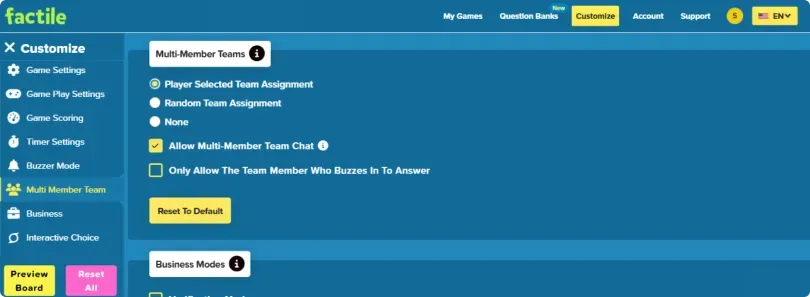
Factile can be played with multi-player teams. Players can be randomly assigned to teams, or they can select their own teams. You can save time by "assigning" players to the teams ahead of time. Multi-member team settings can be found in the customize tab. Setting options include allowing team members to use the “in app” chat and allowing only the team member who buzzes in to answer (figure 1.14).
Some suggestions from a teacher with lots of games under their belt:
- “Practice” before you play with your class/group. This will allow you to become familiar with the settings, format, and operations. Have a friend or student play the role of a player and play 5 – 10 tiles to get the hang of it as the moderator.
- Have players bookmark the the website playfactile.com/join. This will save valuable time when joining the game.
- If all players are in one room, only one screen is needed to display the game screen. This can be done on a smartboard, larger monitor, or LCD projector.
- There are many settings on the Customization page to become familiar with. Experiment with different settings to find what works best for you. If you find the students need more time you can adjust the timer to be longer. You can change the scoring rules, whether to display the question or answer first, you can upload your own mascots, and much more to customize the game for your needs.
- Team scores can be adjusted by clicking on + or – to correct mistakes. The + and – adjust that team score by the minimum point value. So for example, if the row 1 tiles are 100 points the + and – will adjust scores by 100 points for each click.
- Moderators can learn a lot by creating their own games. You can upload in Excel or CVS format to import the category headings, clues, and responses directly.